Scheduling & crews
Crew, vehicle and equipment scheduling
What it solves
Catch mistakes on the board, not on the road
A double-booked STMS, an expired ticket, a TMA without a current COF or a fourteenth day in a row all start on the schedule.
- Clashes are found when someone doesn't turn up.
- Ticket and fatigue checks rely on memory.
- Site checks and pre-warning boards get missed between bigger jobs.
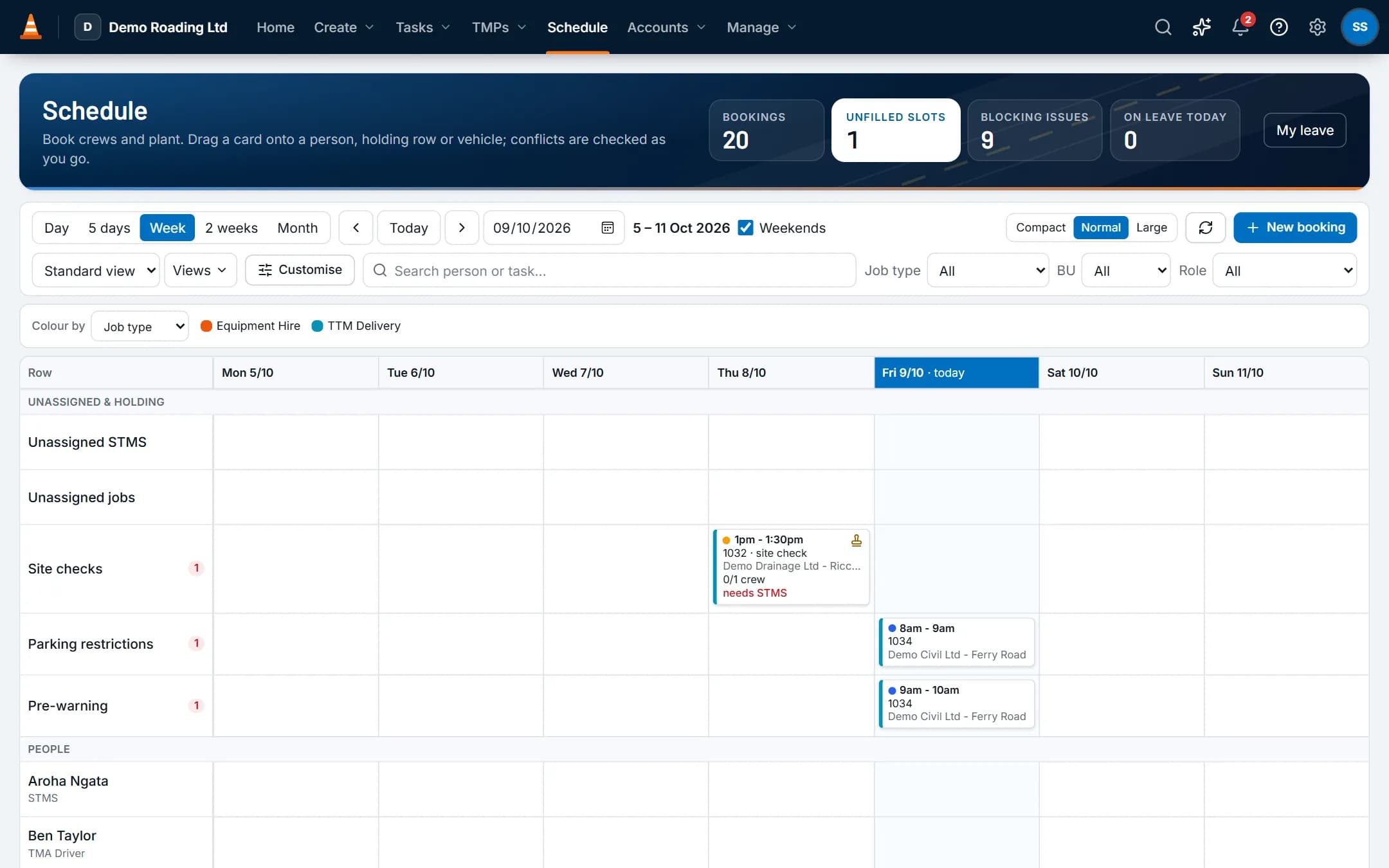
Screens show the real app with fictional demo data.
How it works
Step by step
Book the shift
Each shift is a booking on the task: date, crew start, install-by time, works window, pack-up, and whether it's a night or weekend shift. Pick several dates to book a series.Fill the slots
Each crew slot names a role, such as STMS, TTM Worker or TMA Driver. Add vehicles, plant and equipment, and attach the approved TMP.Assign on the board
People and vehicles are rows. Days are columns. Drag a booking from a holding row onto a person, or use the menu or keyboard instead.See conflicts before you save
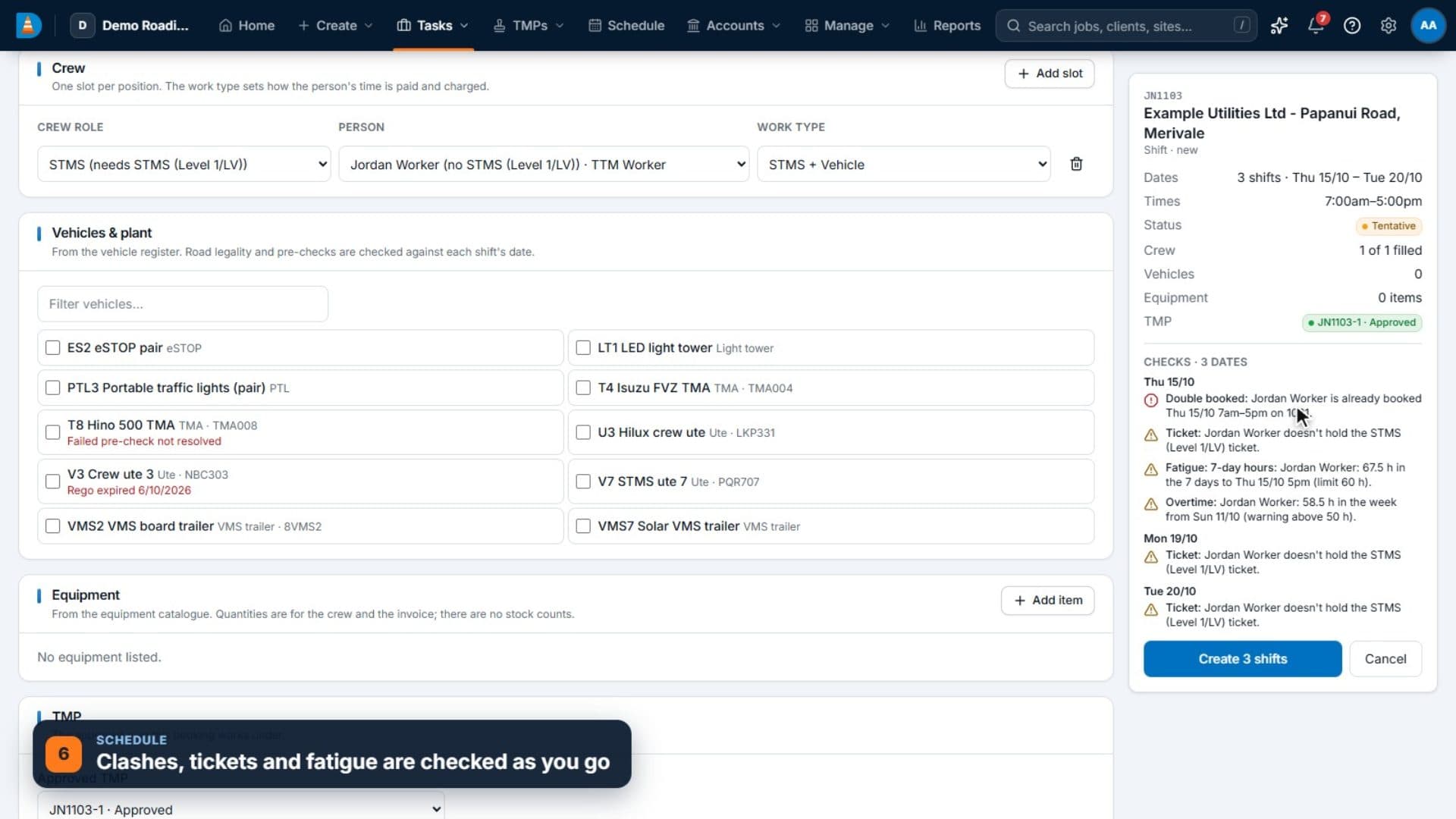
Double bookings, leave, missing or expired tickets, fatigue, overtime and vehicles with an expired WOF or COF are flagged. People with override permission can still save.The crew sees it on their phone
The shift appears in the field app, with an in-app reminder the day before.
See it work
Watch it in the real app
Key capabilities
What it does
- Day, 5-day, week, 2-week and month views, with colour coding, card fields and saved views for you or the whole company.
- Holding rows for unassigned STMS, unassigned jobs, site checks, parking restrictions and pre-warning.
- Fatigue defaults you can change: shifts over 12 hours, breaks under 10 hours, over 60 hours in 7 days, or more than 13 days in a row.
- Breaking a fatigue limit, or booking someone without the role's ticket, can warn or block. A manager can override a block with a reason.
- Site checks as linked mini-bookings under a shift.
- Leave requests and approvals, checked at booking.
- A failed vehicle pre-check flags the vehicle on the schedule until it's resolved.
Questions
Common questions
What do subcontractors see?
Only their assigned jobs and shifts, their own timesheets and their forms, in the same field app as your crews. Their tickets are checked like everyone else's.
What if the office changes a shift while a crew is offline?
The office's change wins. When the phone syncs, anything it can't apply is shown on the phone with the reason.
On the same job
Works with
Field app (offline)
Shifts, plans, forms, photos and time on the phone, synced when coverage returns.
Compliance
Who holds which ticket, which vehicles are road-ready, and who has read the latest procedure.
Timesheets & payroll
Time comes from bookings and the field app, is approved once, then goes to payroll and invoicing.